Mobile Inspector App
Mobile Inspector App User Guide 📱
Can I inspect without the App installed?
Where can I find the Android App?
Where can I find the iOS App?
Account Setup and Administration
Accounting with Intuit QuickBooks Online
Exporting Property Data
Hardware and Software Requirements
Historical Violation Imports
How do I edit CC&R Articles?
How do I get my data out of Buildium?
Importing Property Lists
Is HOALife down?
Matched Ownership - Linking Properties
Property List Format
Security and Backup
User Setup
Adding Users to Accounts
Administrator Permissions
Architectural Committee Member Permissions
Architectural Committee Voter Permissions
Board Member Permissions
HOALife Dashboard Tour
Inspector Permissions
Manager Permissions
Notification Preferences
Read Only Permissions
Reset Password
Staff Permissions
Dashboard: Features & Settings
AI Settings
Annotation
Association Website Feature
Custom Property Information
Document Repository
Owner Directory
Portal Access with QR Codes and PINs
Portal Announcement
Property Notes
Reports, Summaries, and Board Deliverables
Shared Inbox
Tags!
Violation Management & Notices
Automatic Violation Closed Emails
Changing the Style of a Violation Stock Notice
Repeat Violations
Tracking Violation Resolution (Closing)
Violation Notice Cover Letters
Violation Notice Deliveries
Violation Notices
Video Tutorials
Adding & Editing CC&R Articles - Video
Adding New Users - Video
Architectural Requests Overview - Video
Bulk Communications - Video
Creating Invoices through HOALife - Video
Document Repository - Video
HOALife Owner's Portal Tutorial Video - For Homeowners
Online Voting - How to Set Up - Video
Property Conversations - Video
Property Ownership Changes - Video
Tags! - Video
Updating Property Pins - Video
Violation Notice Delivery - Video
Calendars & Events
Escalations
Communications
Bulk Email Conversations
Bulk Letters
Dynamic Variables in Letter & Email Templates
Ensuring Email Delivery From HOALife
How to Generate Mailing Labels
Message to Management
Property Conversations
Property Email Templates
Property Letter Templates
Property Letters
Return Email Addresses
SMS Broadcasts
Sending a Welcome to HOALife Email & Letter
Payments & Invoicing
Homeowner Payment Options - Auto Pay
Invoicing with Quickbooks Online
Payment Posting Timeline
🏦 Payments Administration Guide
Owner Series
Homeowner Payments Guide
Maintenance Requests & CCR Violation Submissions
Owner Message to Manager
Owner Portal Login
Owner Series - How to Cast Your Vote
Owner Series - How to Submit an Architectural Request
Owner's Portal Tutorial
Updating Your Contact Information - Owner Level
Architectural Requests
Architectural Forms - View as Generic Request Form
Architectural Letter and Email Templates
Architectural Requests Overview
Creating Architectural Request Forms
Payments: Charging for Architectural Request Submissions
Assets & Work Orders
Inspections
Add an out-of-inspection violation to a property
Advanced Routing
Customized Inspection Routing
Inspection Summary Report
Using the HOALife Inspector App to Complete An Inspection
Online Voting
Property Ownership Updates and Changes
- All Categories
- Owner Series
- Homeowner Payments Guide
Homeowner Payments Guide

Paying an Invoice (assessments/dues/fines/etc.)
If you have received an invoice from your HOA for your assessments, fees, fines, etc., you can easily make a payment through your HOALife Owners Portal.
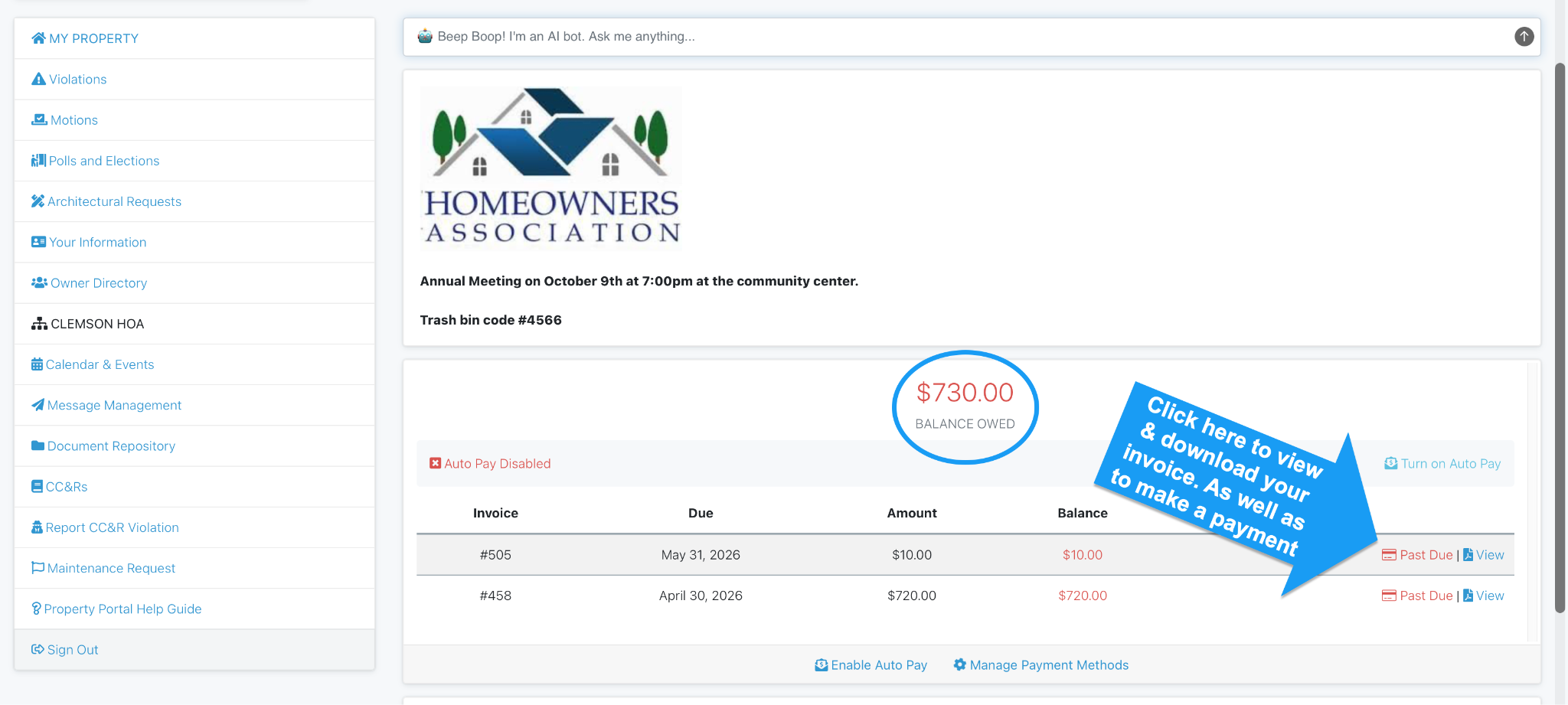
After logging in you will be able to view your total balance, view and download invoices as well as manage your payment methods and set up autopay.
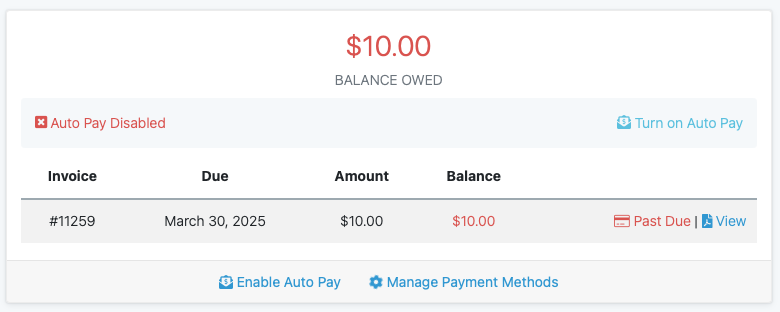
Each invoice will need to be paid independently. Please click “Pay” or “Past Due” to make a one time payment for this charge.
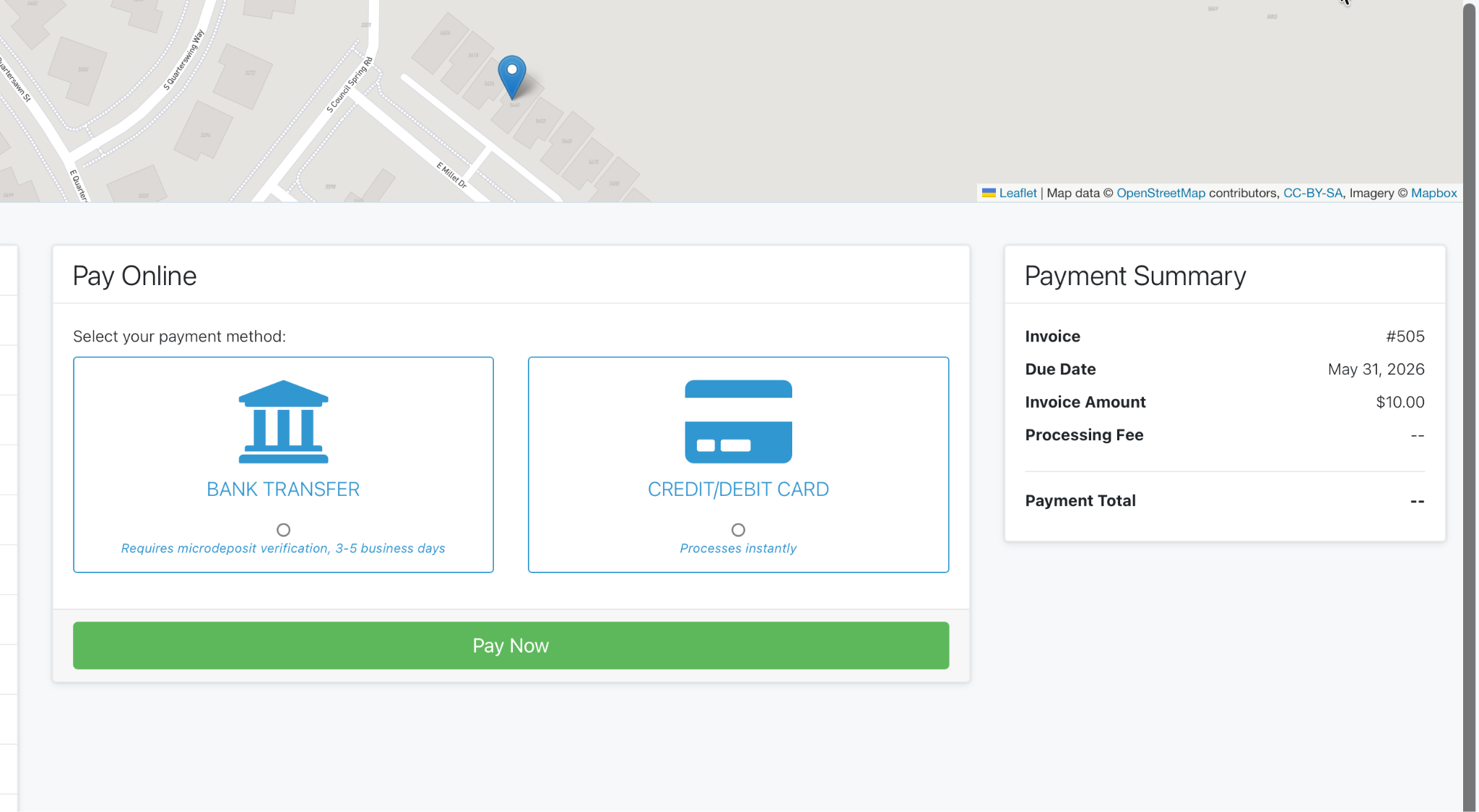
All processing fees will be automatically included prior to payment for full transparency. You will have the option at this point to choose a saved payment method or enter a new payment method.
Adding a Payment Method
From your Owners Portal, please select “Manage Payment Methods” to enter and save a credit card or bank transfer.
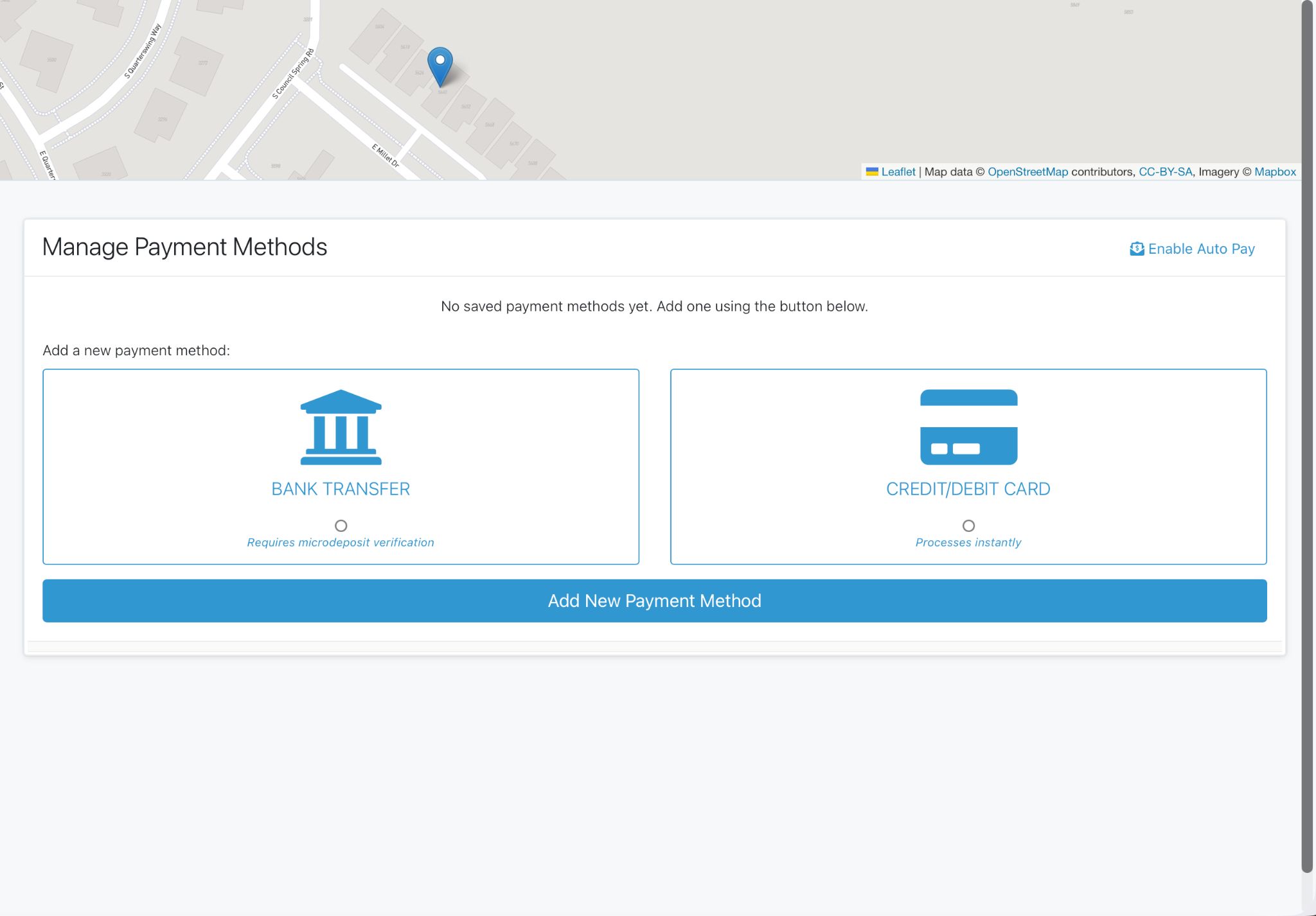
US Bank Accounts and Credit Cards are supported. Please note that when entering a bank account, a microdeposit verification will be required. If not completed, this method will not be valid and could result in a delay of payment on your account.
Once saved this payment method will be available for future payments as well as enabling auto pay on your account. You can add or remove saved payment methods at any time.
Auto Pay
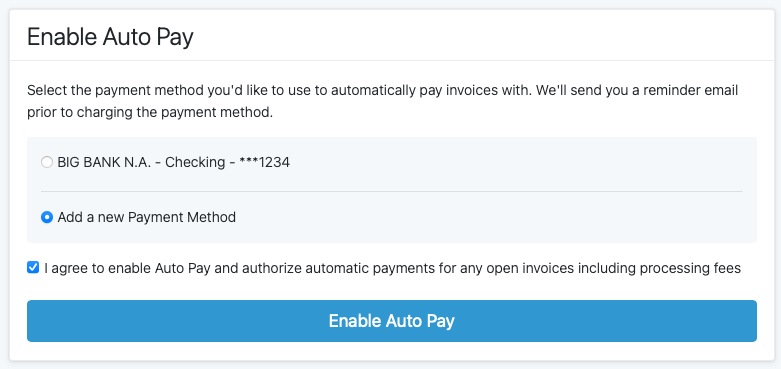
To enable Auto Pay, select Turn on Auto Pay or Enable Auto Pay. When enabling Auto Pay:
- If you already saved a payment method with our secure, PCI-compliant payment provider, you may select it from a list.
- Otherwise, you will need to add a new payment method.
Payment and Reminder Emails
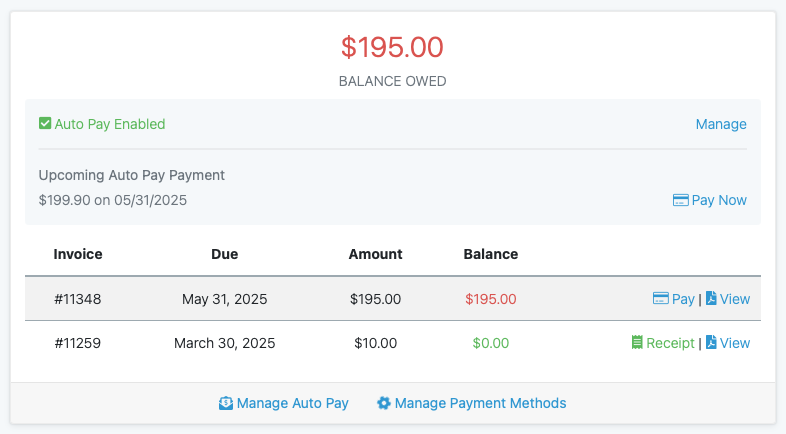
- You will be able to preview upcoming Auto Pay payments in your portal.
- The option to still pay invoices manually, if preferred, will be available even after enabling auto pay.
- Auto Pay can be enabled or disabled at any time.
Auto Pay Schedule & Notifications
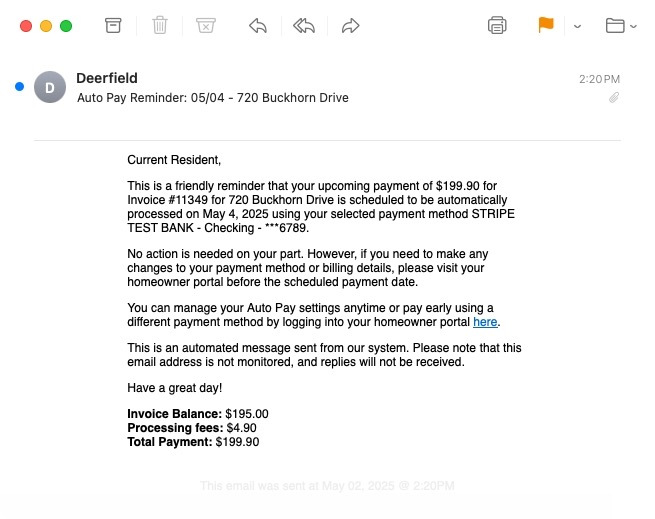
- An Auto Pay Reminder Email is sent 2 days before an invoice’s due date.
- Payment is attempted 2 days after the reminder email is sent.
If Auto Pay is enabled and invoices are already past due, payment will not be attempted until after the reminder is sent.
A Payment Receipt Email is automatically sent from our payment provider for every successful payment, including Auto Pay. If a payment attempt fails you will receive a Payment Failed email notification. You will then need to log into your Owners Portal to update your payment methods and ensure your payment is successfully processed.